12. Groups
For our example, we have a single screen app with business details that we want to show or hide. Before ConstraintLayout, we would have had to call setVisibility on each of them individually. Or perhaps we might have created a custom View to abstract some of the logic away.
With Groups, we can control the visibility of multiple widgets at once.
They also allow use to do it without extra layers of hierarchy, thus increasing rendering performance.
For this UI, we want to be able to toggle the visibility of everything but the business title.
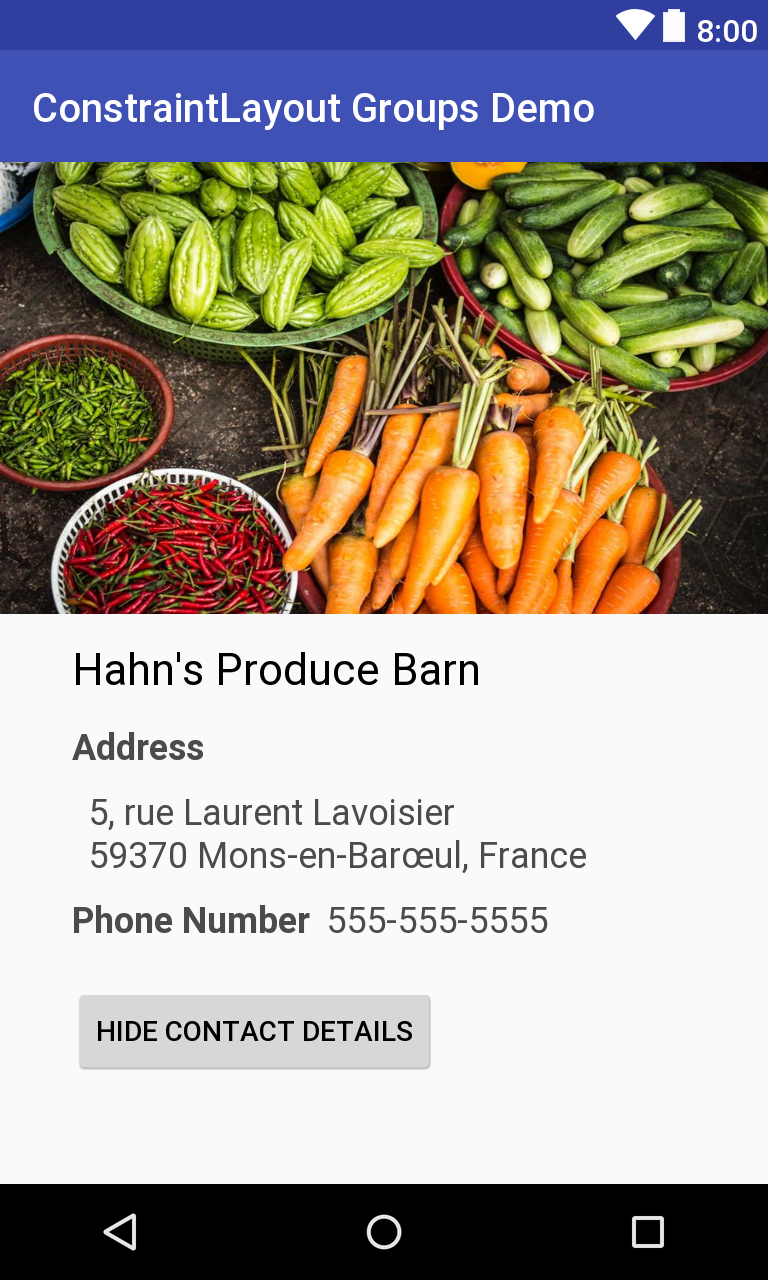
Design View of a Groups Example
Here's a condensed listing of the associated XML code.
<android.support.constraint.ConstraintLayout  ... >

<ImageView
    android:id="@+id/imageView"
    ...
    app:srcCompat="@drawable/produce" />

<TextView
    android:id="@+id/textView"
    ...
    app:layout_constraintStart_toEndOf="@+id/guideline"
    app:layout_constraintTop_toBottomOf="@+id/imageView" />

<TextView
    android:id="@+id/locationLabel"
    ...
    app:layout_constraintStart_toEndOf="@+id/guideline"
    app:layout_constraintTop_toBottomOf="@+id/textView" />

<TextView
    android:id="@+id/locationDetails"
    ...
    app:layout_constraintStart_toStartOf="@+id/guideline"
    app:layout_constraintTop_toBottomOf="@+id/locationLabel" />

<TextView
    android:id="@+id/phoneLabel"
    ...
    app:layout_constraintStart_toStartOf="@+id/guideline"
    app:layout_constraintTop_toBottomOf="@+id/locationDetails" />

<TextView
    android:id="@+id/phoneDetails"
   ...
    app:layout_constraintStart_toEndOf="@+id/phoneLabel"
    app:layout_constraintTop_toBottomOf="@+id/locationDetails" />

<android.support.constraint.Guideline
    android:id="@+id/guideline"
    ...
    app:layout_constraintGuide_begin="20dp" />


<Button
    android:id="@+id/button"
   ...
    app:layout_constraintStart_toStartOf="@+id/guideline"
    app:layout_constraintTop_toBottomOf="@+id/phoneLabel" />
To specify which Views we want tied to a group, we can add their ids as a comma separated list to the property
app:constraint_referenced_idsNote that they don't need the @+id/ prefix.
In our example, we want the everything except the business title to be hidden or unhidden.
<android.support.constraint.Group
    android:id="@+id/group"
    android:layout_height="wrap_content"
    android:layout_width="wrap_content"
    app:constraint_referenced_ids="locationLabel,locationDetails,phoneLabel,phoneDetails"
/>
With the group set in XML code, all we need to do to call it is assign it to our button's OnClickListener handler code.
I've listed the full MainActivity file for full context but the pertinent portion is the onClick function. The code is written in Kotlin however for your convenience, the specific lines to toggle the group have comments with their Java equivalents.
After instantiating the group with findViewById, we can set its visibility.
class MainActivity : AppCompatActivity(), View.OnClickListener {

lateinit var button: Button
lateinit var group: Group

override fun onCreate(savedInstanceState: Bundle?) {
    super.onCreate(savedInstanceState)
    setContentView(R.layout.activity_main)

    button = findViewById(R.id.button)
    group = findViewById(R.id.group)

    button.setOnClickListener(this)
}

override fun onClick(v: View?) {
    if (group.visibility == View.GONE) {
        group.visibility = View.VISIBLE        // group.setVisibility(View.VISIBLE);
        button.setText(R.string.hide_details)
    } else {
        group.visibility = View.GONE           // group.setVisibility(View.GONE);
        button.setText(R.string.show_details)
    }
}
}
You can find the code for this example in this course's Github repo.